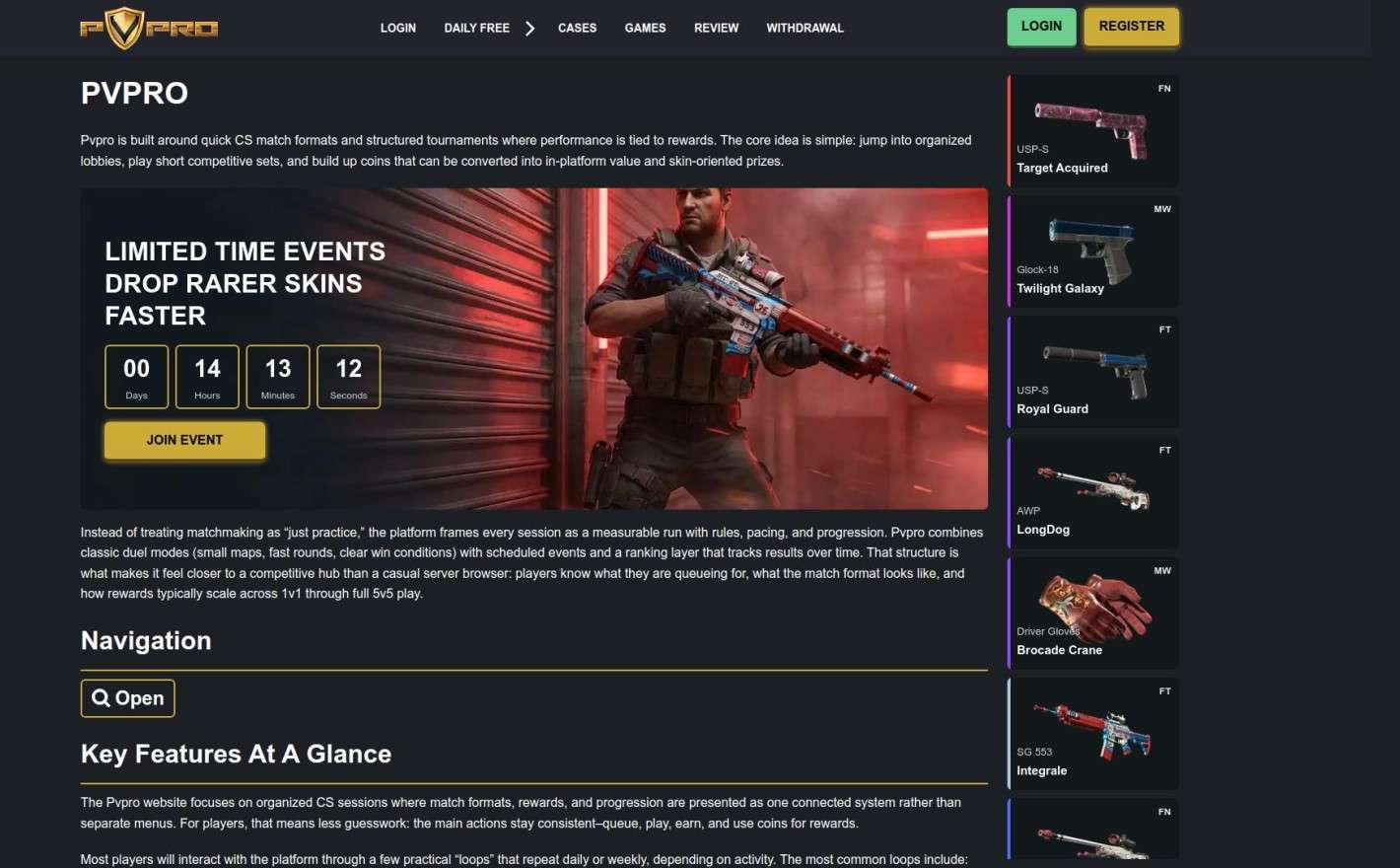
PVPro operates on a unique reward model where competitive gameplay in duels, team queues, and tournaments earns players coins. These coins are the primary currency for acquiring skin-oriented prizes and other rewards within the platform's ecosystem. Before a withdrawal can be initiated, users must first convert their earned coins into tangible items available in the PVPro shop or marketplace. This process connects in-game performance directly to valuable digital assets. Successfully navigating the https://pvpro.org platform’s withdrawal system ensures that players can securely transfer these rewards to their personal Steam inventory.
The entire withdrawal process hinges on the Steam trading system. Once an item is claimed on PVPro, it is delivered via a standard Steam trade offer. This integration requires users to have a clear understanding of Steam's trading requirements, including the proper use of a trade URL and maintaining correct inventory privacy settings. Familiarity with these prerequisites is essential for a smooth and timely transaction, preventing common errors that can delay or block the transfer of skins.
Before initiating any withdrawal from PVPro, it is crucial to ensure your Steam account is properly configured to receive trade offers. Failure to complete these preparatory steps is one of the most common reasons for transaction failures. A correctly set up account minimizes delays and ensures that the automated system can send your items without any hitches.
Follow this checklist to prepare your Steam account:
Your Steam Trade URL can be found within your Steam inventory settings. It's a simple process that ensures your account is ready for transactions from external platforms.
| How to Find Your Steam Trade URL |
|---|
| 1. Open Steam and navigate to your "Inventory." |
| 2. Click the "Trade Offers" button, usually located in the top-right corner. |
| 3. Select "Who can send me Trade Offers?" from the right-hand menu. |
| 4. Scroll down to the "Third-Party Sites" section to find your unique Trade URL. |
| 5. Copy this URL and paste it into the designated field in your PVPro account settings. |
Once your Steam account is prepared, the process of withdrawing your skins from PVPro is straightforward. The platform is designed to guide you through each stage, from selecting your item to accepting the final trade offer. By following these steps carefully, you can ensure a successful transfer of your hard-earned rewards.
Here is a detailed breakdown of the withdrawal procedure:
Withdrawal times on PVPro can fluctuate based on several factors, including the volume of requests being processed and the status of the Steam network. While many transactions are completed within minutes, it's important to have realistic expectations and understand what different status indicators mean. Patience is key, especially during peak hours or promotional events when system traffic is high.
The platform typically uses a set of statuses to keep you informed about the progress of your withdrawal request. Familiarizing yourself with these terms can help you understand where your item is in the process and whether any action is needed on your part.
| Withdrawal Status | Description | Required Action |
|---|---|---|
| Pending | Your withdrawal request has been received and is waiting in the queue to be processed. | None. Wait for the system to process the request. |
| Processing | The system is actively preparing to send the trade offer to your Steam account. | None. The trade offer should be sent shortly. |
| Sent | The trade offer has been successfully sent to your Steam account. | Log in to Steam and accept the pending trade offer. |
| Completed | You have accepted the trade offer, and the item has been transferred to your Steam inventory. | None. The transaction is finished. |
| Failed/Declined | The withdrawal could not be completed. This is often due to an issue with your Steam account settings or the trade offer being declined. | Review the error reason, correct the issue, and re-initiate the withdrawal. |
Even with careful preparation, withdrawal requests can sometimes fail. Most issues are easily resolved by checking a few key settings on your Steam and PVPro accounts. Understanding the root cause of a failure is the first step toward fixing it and successfully retrieving your items. These problems are rarely permanent and typically stem from simple configuration errors.
Below is a list of common problems that can lead to a failed withdrawal and the recommended solutions for each.
For more complex issues, it's always best to have a clear understanding of the potential causes before seeking further assistance.
| Problem | Solution | Prevention Tip |
|---|---|---|
| Steam API Issues | Sometimes Steam's trading services experience downtime. Wait for a while and try again later. | Check Steam's server status online before initiating a withdrawal during suspected outages. |
| Account Not Verified | Some platforms require additional verification for high-value withdrawals. Ensure all account verification steps on PVPro are complete. | Complete all profile and security verification steps immediately after creating your account. |
| Item Temporarily Unavailable | The specific item you are trying to withdraw may be temporarily out of stock. | Check back later or contact PVPro support to inquire about restock times. |
While Steam does not specify a universal expiration time, most trade offers from automated systems are active for a limited period. It is highly recommended to accept the trade offer as soon as you receive the notification to avoid expiration and the need to re-initiate the process.
If a withdrawal fails due to an incorrect trade URL, private inventory, or an expired offer, the item is typically returned to your PVPro inventory. After correcting the underlying issue, you can attempt the withdrawal again without losing your reward.
Once a trade offer has been sent, you cannot cancel it from the PVPro platform. Your only options are to accept or decline the offer within Steam. If you decline it or let it expire, the item will be returned to your on-site inventory.
The most common reason a trade URL fails is that it has been changed. Every time you click "Create New URL" in your Steam settings, the old one becomes invalid. Ensure the URL saved in your PVPro profile is the exact one currently displayed in your Steam account.
PVPro's core service is designed around earning rewards through gameplay. The platform generally does not charge additional fees for withdrawing the skins you have earned. The value of the item is determined by the coins you spend to acquire it in the first place.
The post PVPro Withdrawals Step By Step: A Complete 2026 Guide appeared first on Yoga With Adriene.